Check Annotations
Overview
Check Annotations is a modeless tag coverage audit in the QA/QC panel. Pick the categories to check (Rooms, Doors, Walls, and any other tagged category) and a scope (the active view or all annotatable views), tick which issues to flag, and click Run. Every element is listed with a Finding, its Level, Category, Mark, Element name, and Id, so you can see at a glance what is Untagged and where an Empty tag, Orphan tag, Duplicate mark, or Duplicate tag exists. Because the window is modeless, the Revit canvas stays live: highlight any element, paint the flagged ones in the view, and mark findings Approved or Ignored as you resolve them.
The five checks
- Untagged: the element carries no tag in the evaluated view.
- Empty tag: a tag is present but its value is blank.
- Orphan tag: a tag whose host element is gone.
- Duplicate mark: two elements share the same Mark value.
- Duplicate tag: the same element is tagged more than once.
Review workflow (Approve / Ignore)
Every finding starts Pending. Approve accepts it as reviewed and Ignore sets it aside as a false positive, while the header keeps a running tally of Pending, Approved, and Ignored. Save preset and Load preset store your category and check selections, so the same audit is one click away on the next model.
How to use
- In the B45 Labs | Coordination tab, open the QA/QC panel and click Check Annotations.
- Click Categories to choose what to audit (Rooms, Doors, Walls, and any other tagged category), and set Scope to Active view or all annotatable views.
- Tick the checks to flag (Untagged, Empty tag, Orphan tag, Duplicate mark, Duplicate tag), then click Run to build the report.
- Read the grid, one row per element with its Finding, Level, Category, Mark, Element, and Id; use Search and the column chooser to focus, and Hide resolved to shrink the list as you fix things.
- Tick Select in model, then click Highlight (or Highlight all) to select and zoom to flagged elements; use Apply graphic highlight to paint them in the view and Reset highlight to clear it.
- Work the findings: Approve the ones that are acceptable and Ignore false positives (Reset undoes a status), then click Run again after tagging, the window stays open.
Screenshots
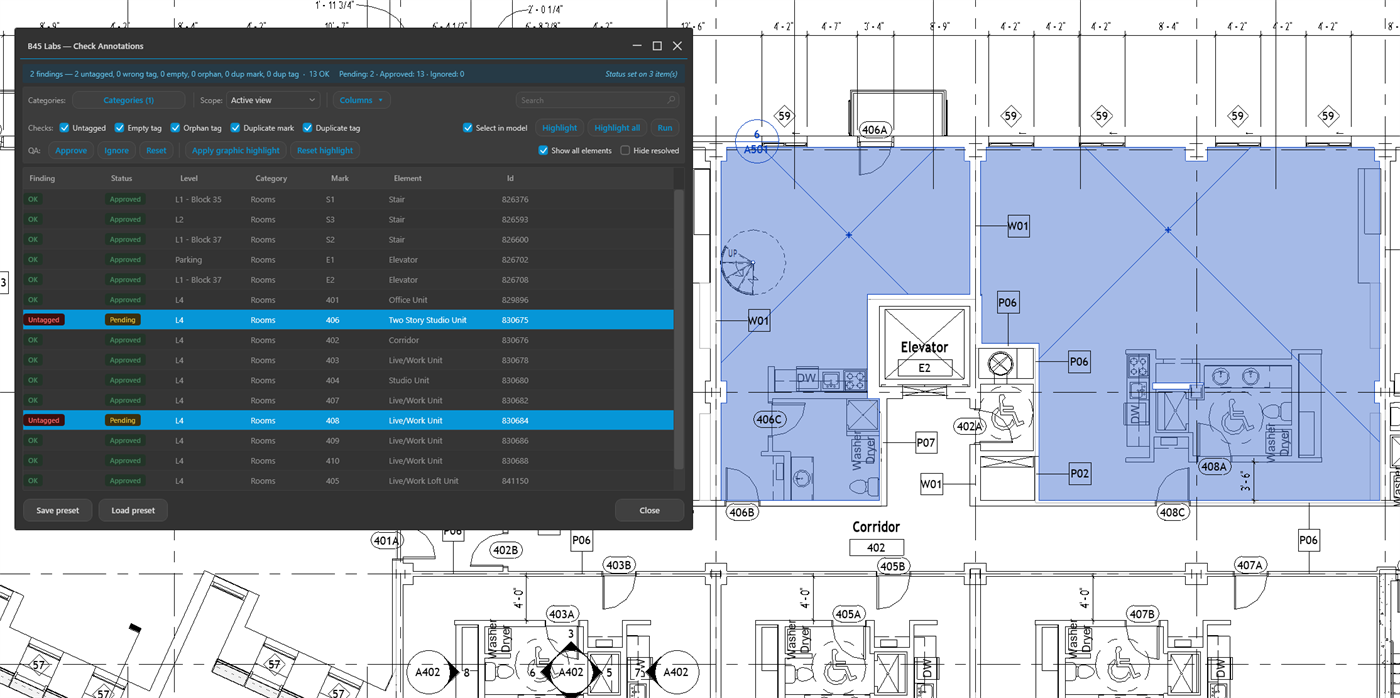
Room tag coverage: untagged rooms flagged on the plan
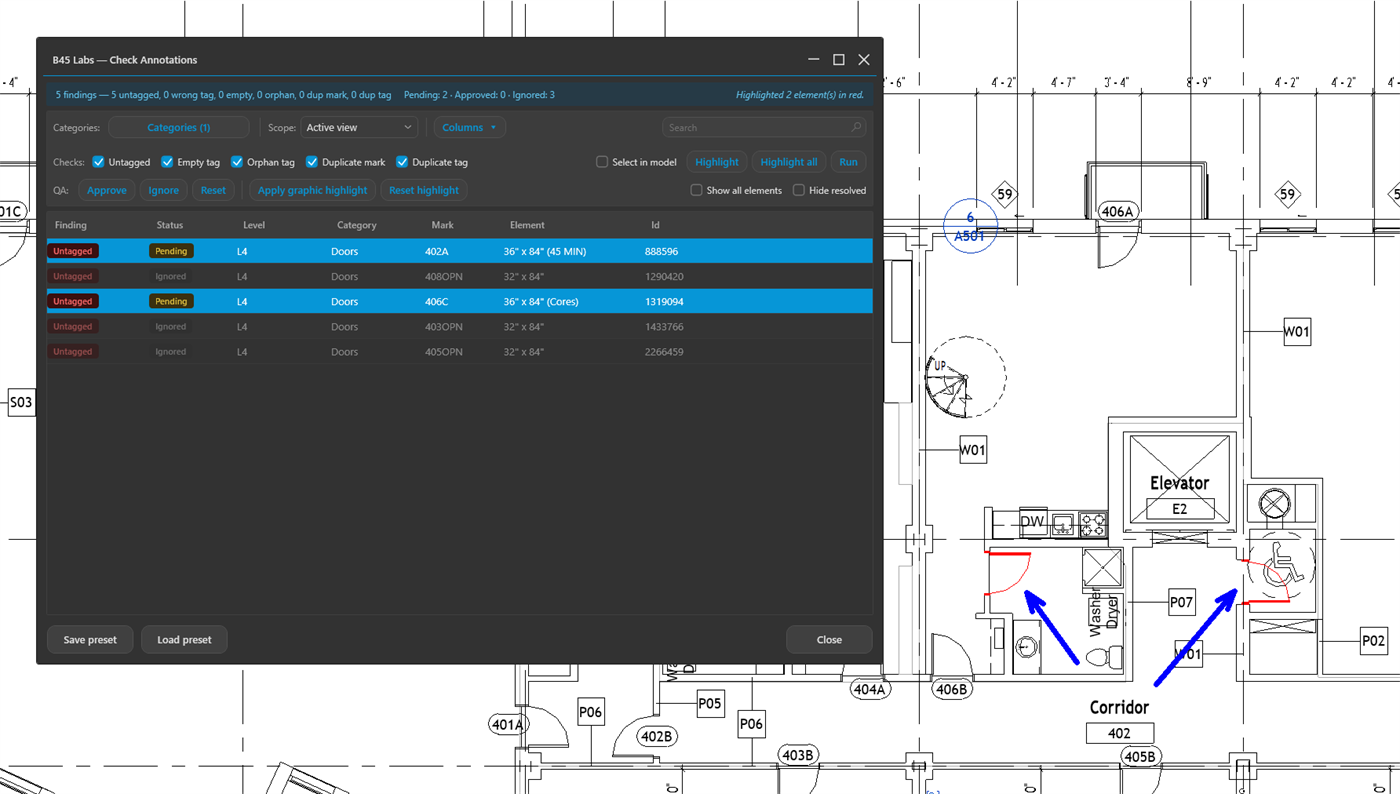
Door tag coverage across the audited views
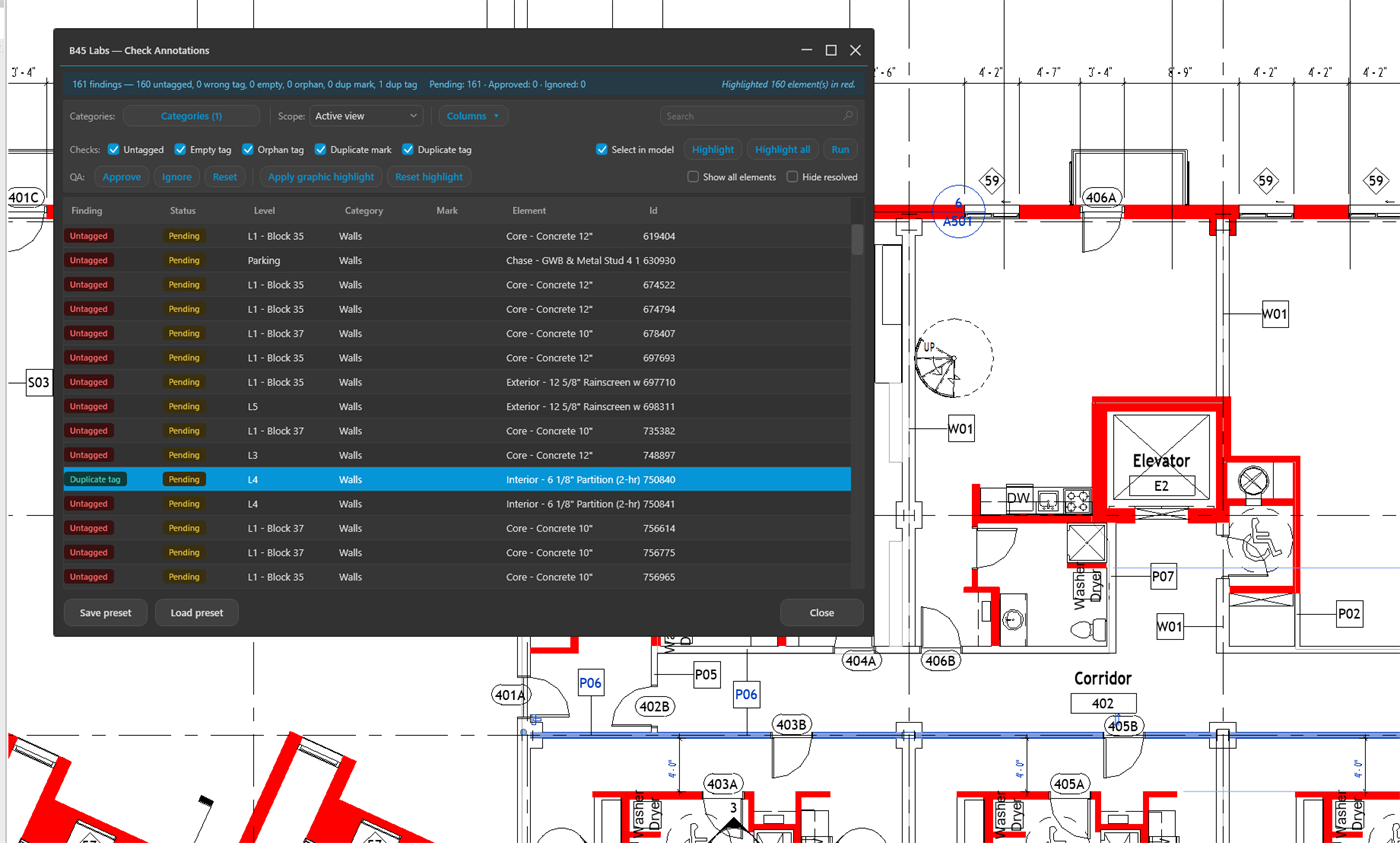
Wall tag coverage in the active view
Tips & Notes
- Scope to the Active view for a sheet-ready check, or run all annotatable views to audit the whole set at once.
- Duplicate mark is the fastest way to catch two rooms or doors sharing a number before a deliverable.
- Save a preset per discipline (rooms, doors, walls) so each QA pass loads the exact categories and checks you want.
Limitations
- Read-only: it reports tag coverage and never adds, edits, or deletes tags.
- Coverage is evaluated per view: an element counts as tagged only where a tag is visible in the scope you run.
- Sheets, schedules, templates, and browser views are excluded; only annotatable graphical views are analyzed.