Parameter Control
Overview
Parameter Control is a three-tab workspace — Create, Manage, and Export — for the shared and project parameters of the active model. Create builds parameters in bulk, from a filled-in Excel sheet or row by row, validating and previewing each one before writing them into the model in a cancelable, per-item batch. Manage lists every parameter already bound in the document, runs impact analysis, and lets you delete, replace, rename, regroup, or consolidate them. Cleanup gathers the parameters that share a name and merges them onto a single survivor instead of leaving you to guess which duplicate to delete. Export writes the current parameter definitions out to an Excel workbook or to a Revit shared-parameter TXT file.
Create tab
Build shared or project parameters. Import a filled Excel sheet (Download Template gives you the exact format) or add and duplicate rows by hand; for each row set the name, data type (filtered by discipline), Instance/Type binding, group, visibility, and the bound categories via the "..." picker. Bulk Add, Remove, and Replace apply a category set to every ticked row at once. Validate tags each row Create/Skip/Review/Error, and Execute writes the approved rows in one cancelable, per-item batch with a progress overlay.
Manage tab
Lists every shared and project parameter bound in the document — loaded automatically when the window opens — with its categories, group, binding, and data type. Filter by mode, data type, or free text, then select parameters to Analyze Impact (how many elements hold a value), Delete, Replace, or Rename/Replace. Revit-protected parameters are flagged as non-deletable and skipped. Edit and Change Group offer every parameter group Revit itself exposes, including ones earlier releases could not reach — Visibility, Photometrics, Title Text and Rebar Set among them — which used to fall back to General without saying so. A shared parameter's group belongs to this document, not to the shared-parameter file.
Export tab
Writes the current parameter definitions to an Excel workbook or to a Revit shared-parameter TXT file, scoped to All, Filtered, or Selected. Excel carries both shared and project parameters; the TXT format carries shared parameters only.
How to use
- In the B45 Labs | Coordination tab, open the Model Management panel and click Parameter Control. The window opens on the Create, Manage, and Export tabs, with the model's existing parameters already loaded in Manage.
- On the Create tab, import a filled-in Excel sheet (click Download Template first to get the exact columns) or add rows manually, setting each parameter's name, data type, binding, group, and the categories to bind via the "..." picker.
- Click Validate to check and preview every row — each is tagged Create, Skip, Review, or Error; use the filter presets (Errors, Warnings, Needs Categories, Valid) to isolate problem rows, then click Execute to write the approved parameters into the model.
- On the Manage tab, filter by mode, data type, or free text, tick the parameters you want, and click Analyze Impact to see how many elements actually carry a value before you act.
- Delete, Replace, Edit, or Change Group the selected parameters — each destructive action asks for confirmation first. Edit works on one parameter and changes its name, its group, or both in a single confirmation; leave the name blank and only the group moves, in place, without touching any value. Change Group does the same regrouping across a whole selection at once.
- Use Cleanup when the same parameter name exists more than once: it groups the duplicates, shows what each one holds so you can tell them apart, and consolidates them onto the survivor you choose.
- On the Export tab, choose a scope (All, Filtered, or Selected) and export the definitions to Excel or to a shared-parameter TXT file.
Screenshots
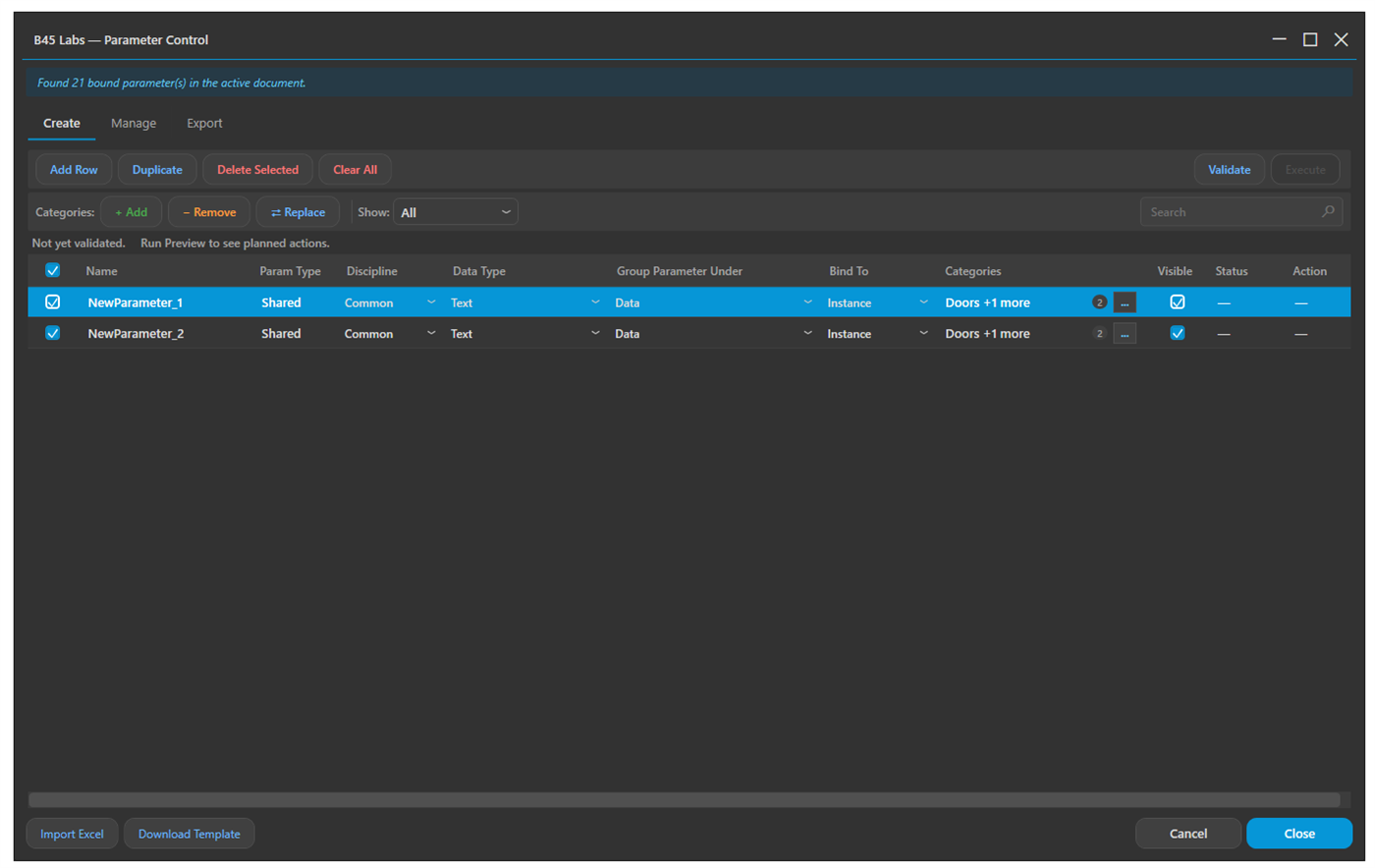
Create tab: build parameters in bulk from Excel or row by row
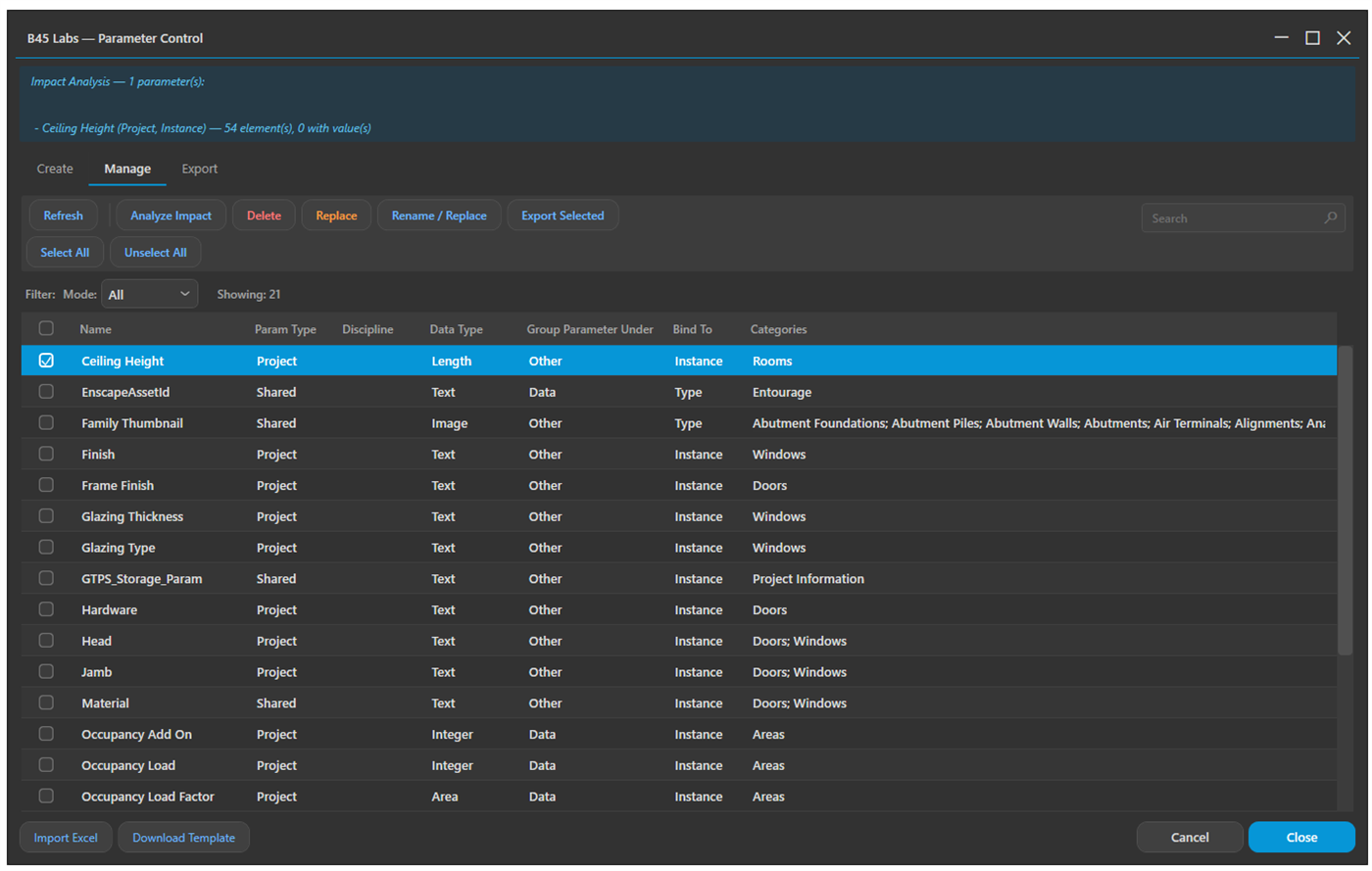
Manage tab: every bound parameter, with impact analysis
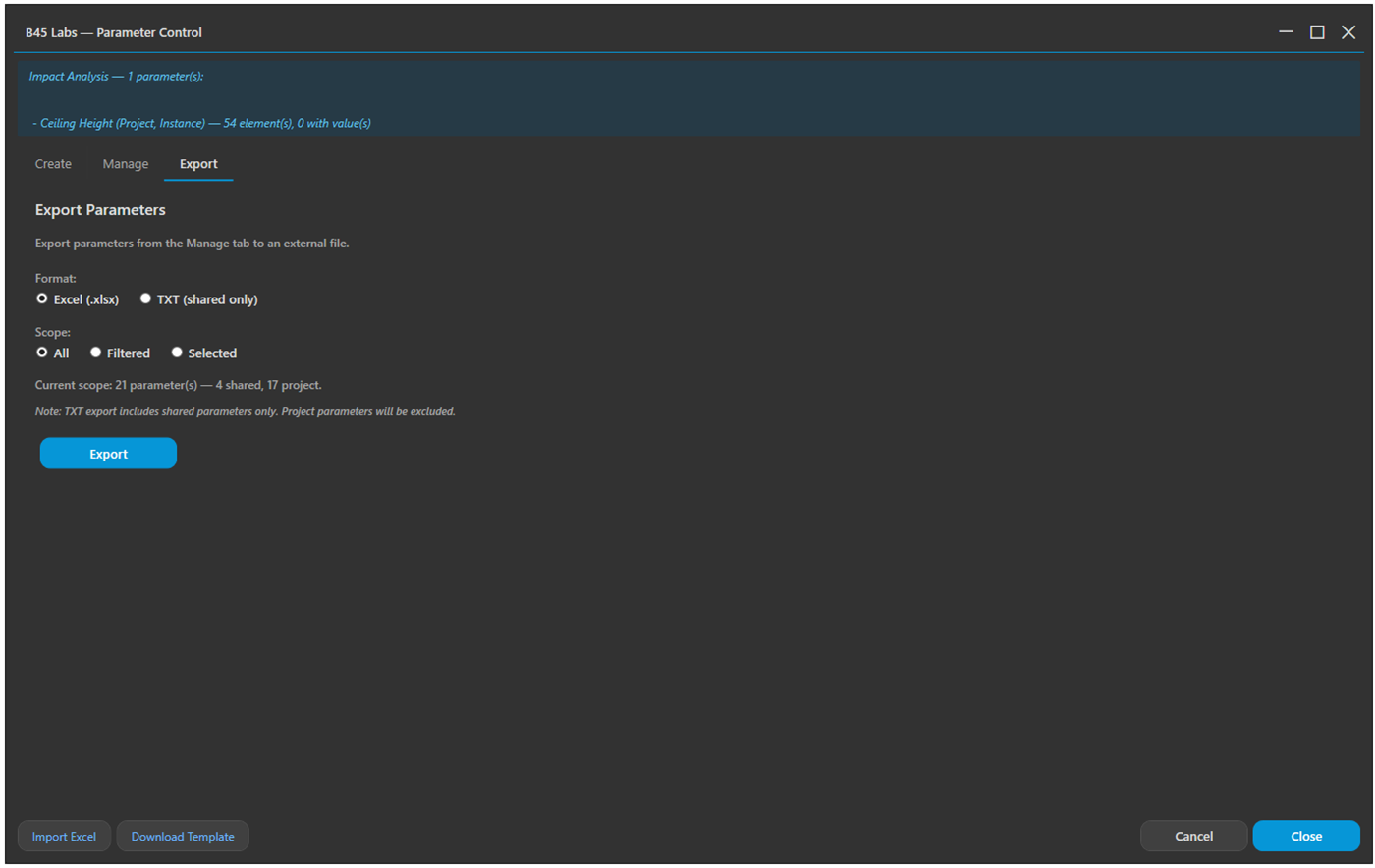
Export tab: write definitions to Excel or a shared-parameter TXT
Tips & Notes
- Rename/Replace is honest about Revit's limits: it creates a new parameter under the new name and deletes the old one — it does not carry the old values across, so plan for value re-entry.
- Bulk category actions save time on large imports — tick the rows, then Add, Remove, or Replace a whole category set in one step.
- Run Analyze Impact before deleting: it counts the elements that actually hold a value, so you know exactly what you would lose.
- If no shared-parameter file is set on the machine, Create writes to a persistent B45 Labs shared-parameter file in ProgramData, so the GUIDs stay stable across sessions.
- Regrouping through Edit with a blank name is the only edit on this tab that changes a parameter in place. Renaming recreates it, so prefer the blank-name path when the group is all you want to fix.
Limitations
- Rename/Replace recreates the parameter with a new GUID and deletes the original — existing element values are not migrated.
- TXT export includes shared parameters only; project parameters are silently skipped — use Excel to capture both.
- Parameter Control operates on the host document and is blocked on read-only (linked or detached) models.