Check Walls
Overview
Check Walls opens a non-modal, editable grid of every wall — Wall Type, Base Level, Base Offset, Top Level, Top Offset, Height (unconnected), Top Extension, Room Bounding, Phase Created, Phase Demolished, Function, and Workset. Edit any cell and the change is staged as a pending edit; click Apply to write the whole batch to the model at once. A filter panel narrows the list across seven combinable dimensions, Visual Analysis paints the walls in the model by any of those dimensions so you can see the pattern instead of reading it row by row, and — with Select in Model ticked — clicking a row selects and zooms to that wall.
Filter panel
Seven dimensions, each its own collapsible group: Base Level, Wall Type, Workset (workshared models only), Phase Created, Phase Demolished, Function, and Structural. Selections combine as AND between groups and OR within a group, so ticking two levels and one wall type means "either level, and that type". A group with nothing ticked applies no constraint at all. Refresh keeps the choices you unticked, so re-reading the model does not undo your filtering.
Visual Analysis
Colours the walls in the model by Base Level, Wall Type, Workset, Phase Created, Phase Demolished, Function, Structural, or Problems. Colours are generated so neighbouring values stay distinguishable, outlines are drawn darker than the fill so same-coloured walls next to each other still read as separate walls, and the legend beside the grid lists each value with its count. Problems mode marks the three conditions worth hunting: unconnected walls, walls with no base level, and walls with Room Bounding switched off. The fill is applied to the cut face as well as the projected one, so the colours show in plans and sections, not only in 3D. Reset restores the original graphic overrides.
How to use
- In the B45 Labs | Coordination tab, open the QA/QC panel and click Check Walls.
- Narrow the list with the filter panel on the left: Base Level, Wall Type, Workset, Phase Created, Phase Demolished, Function, and Structural, each group collapsible with its own Select All / Clear All and an n/N tally. Ticks combine as AND across groups and OR inside one group, and the summary reads "filtered of total walls".
- Edit any cell — Wall Type, levels, offsets, height, room bounding, phases, function, or workset — and watch the status bar tally the pending changes.
- Click Apply to write all staged edits to the model in one batch (each field becomes its own Ctrl+Z entry); Apply is enabled only while there are pending changes.
- Open Visual Analysis to paint the walls: pick what to colour by, and the model takes a generated palette with a legend beside the grid. Adjust transparency, pin a colour that has to stay put, or load one of the presets, and click Reset to remove the overrides.
- Tick Select in Model, then click a row to select and zoom to that wall; use Isolate All Walls or Isolate Filtered to isolate walls in the active view.
- Click Refresh to re-read walls from the current model state.
Screenshots
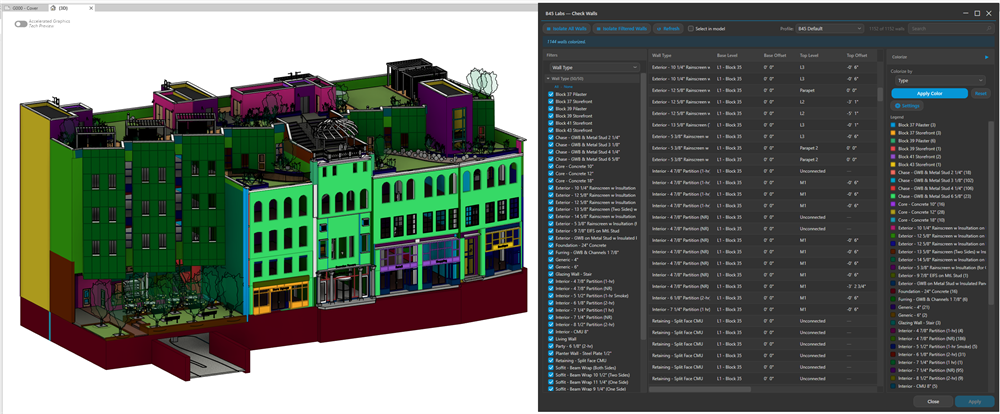
Check Walls showing wall types, constraints, and level filters
Tips & Notes
- Edits accumulate until you click Apply — retype several cells and commit them together, and re-editing the same cell simply replaces its pending value.
- Leave Select in Model unticked to browse the grid without disturbing your current selection; tick it only when you want row clicks to drive the canvas.
- Walls that aren't Room Bounding are a frequent cause of rooms with no area — scan that column alongside Check Rooms.
- Isolate Filtered respects your level filter, so you can isolate just one story's walls in the active view.
- Pin a colour when a specific value has to stay recognisable while you work — pinned colours survive the palette being regenerated, while unpinned ones are reassigned as values come and go.
- Problems mode is the fastest way to find the walls behind rooms that report no area: Room Bounding switched off shows up immediately, without reading the column row by row.
Limitations
- Operates on walls in the host model only, not in linked models.
- No session rollback — Apply commits the batch immediately; undo individual fields with Ctrl+Z in Revit.
- Visual Analysis overrides live in the Revit session. After restarting Revit the walls stay painted but Reset can no longer undo them — clear them through Override Graphics in View, or Visibility/Graphics, on the affected views.
- The legend counts every wall in the current filter, while the model only paints the walls present in the view you are looking at. The two numbers can disagree, and that is expected.