Check Coordinates
Video tutorial
Overview
Check Coordinates is a read-only georeferencing audit. It compares the host model against every loaded Revit link on three coordinates — Survey Point, Project Base Point, and Angle to True North — and flags each link Aligned or Not Aligned against a tight tolerance. The left panel shows the host model's identity and coordinates (site name, time zone, latitude/longitude, Survey Point, Project Base Point, and angle); the right panel shows one card per link with its values and status, plus a summary of aligned vs. not-aligned links. The report exports to Excel or PDF.
How to use
- In the B45 Labs | Coordination tab, open the QA/QC panel and click Check Coordinates.
- If the host model is still on default coordinates (Survey Point, Project Base Point, and Internal Origin all at zero), a prompt lets you cancel or proceed anyway — proceed only to inspect, since the numbers aren't yet meaningful for coordination.
- Read the left panel for the host model's identity and coordinates; read the right panel for one card per loaded link.
- Check each link card's Survey Point, Project Base Point, and Angle to True North — each is marked Aligned or Not Aligned against the host.
- Use the summary to see how many links are aligned vs. not, and which unloaded links were skipped — they appear as amber cards, excluded from the totals.
- Export the report to Excel or PDF for a coordination record.
Screenshots
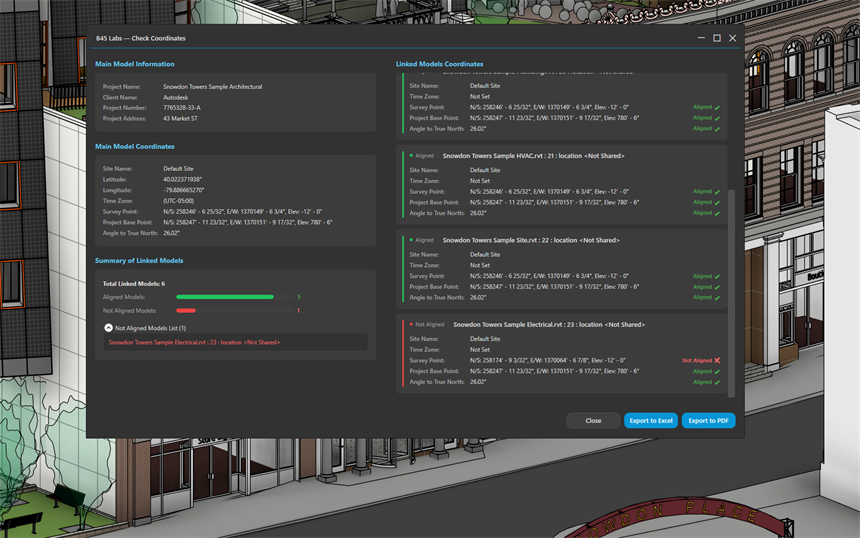
Check Coordinates showing main model info, coordinates, and linked model alignment status with green/red indicators
Tips & Notes
- Load every link you want checked first — unloaded or inaccessible links can't be read, so they're reported but excluded from the aligned/not-aligned totals.
- Run it before each model submission; a single Not Aligned card is enough to hold a delivery until the shared coordinates are reconciled.
- Alignment uses a tight tolerance — about 1/8 inch on position and a hundredth of a degree on angle — so a Not Aligned card is a real mismatch, not rounding.
- The Excel and PDF exports carry your company name, accent colour, and logo once you have set them in User Profile, so a coordinates report can go to a consultant without reformatting.
Limitations
- Reports alignment only — it never moves or corrects any point.
- Compares against loaded Revit links; CAD links and unloaded models are not analyzed.