Library
Overview
Library is the heart of B45 Library — a dockable pane to browse, preview, and load content into the active model without leaving the drawing. It reads from two sources: the Models side shows content already living in your open documents, and the Library side scans the folders you configure on disk plus external .rvt files. Content types span loadable families, system types, materials, fill patterns, drafting views, sheets, legends, view filters, view templates, and model/detail groups. A persistent on-disk cache with thumbnail previews makes the pane open near-instantly instead of re-scanning your folders on every launch.
Families
.rfa files from disk, families inside any open document, and families already loaded in the model. Double-click starts Revit's own interactive placement, so you can drop as many instances as you want before pressing Esc to move to the next family in the batch.
System types
Walls, floors, ceilings, roofs, pipes, ducts, and more. Insert either launches Revit's native draw tool with that exact type preselected, or applies the type to your current canvas selection. A type captured from another document is copied into the active model first, with collision-safe auto-rename.
Materials & fill patterns
Imported cross-document into the active model with auto-rename on name collision. Pattern uniqueness is target-aware — a Drafting and a Model pattern of the same name never clash.
Drafting views, sheets & legends
Copied cross-document. A sheet import reuses the shipped Copy Sheet From Model engine — title block, viewports, referenced drafting views, legends and schedules, and sheet annotations, with the same sheet-number collision handling. Drafting views and legends copy with their content.
View filters & view templates
Office-standard content, so a same-name item already in the model is skipped rather than silently duplicated — with an explicit "Insert as copy" escape hatch on the right-click menu. A view template travels with its applied filters and reuses any that already exist instead of duplicating them.
Model & detail groups
The group definition is imported cross-document, then you place instances interactively — one pick-point at a time until you press Esc — the same chained-placement flow as families.
How to use
- Click Library on the B45 Labs ribbon to open the Library pane (click again to hide it).
- Configure your library folders once from the settings dialog — add, remove, and reorder scan paths; the pane remembers them between sessions.
- Switch between the Models and Library sides, then use the tabs to pick a content type.
- Search globally, and use Favorites and Recents to keep frequent content one click away.
- Double-click a row to insert it, or Ctrl/Shift-select several items and insert them in a single action.
Screenshots
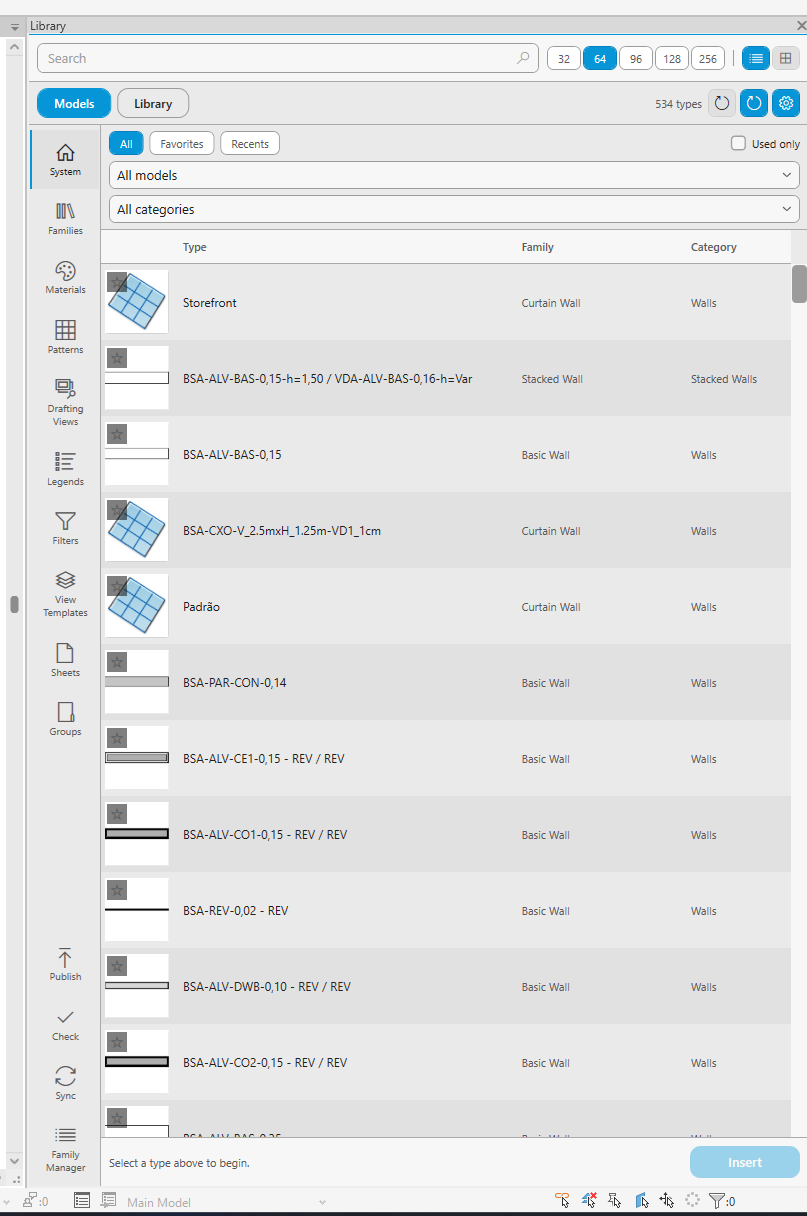
Models side: system types already living in the open document
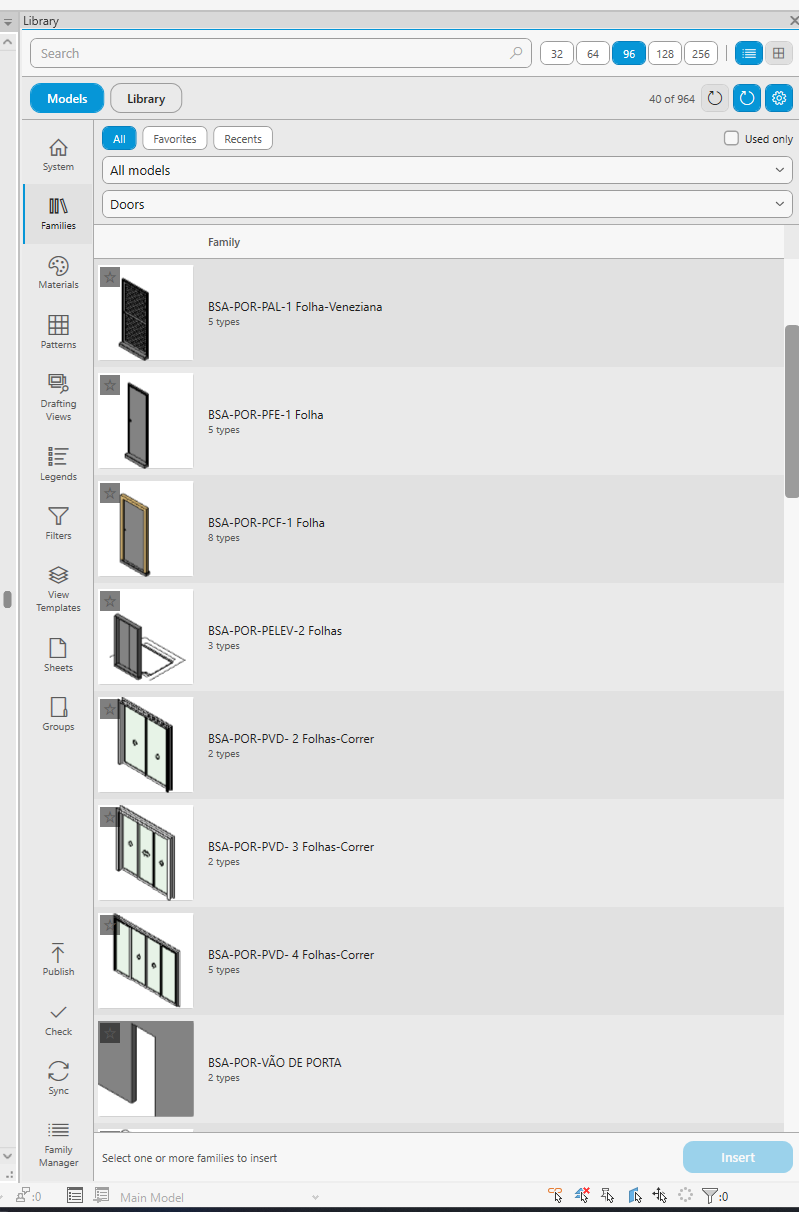
Families tab: loadable families with thumbnail previews
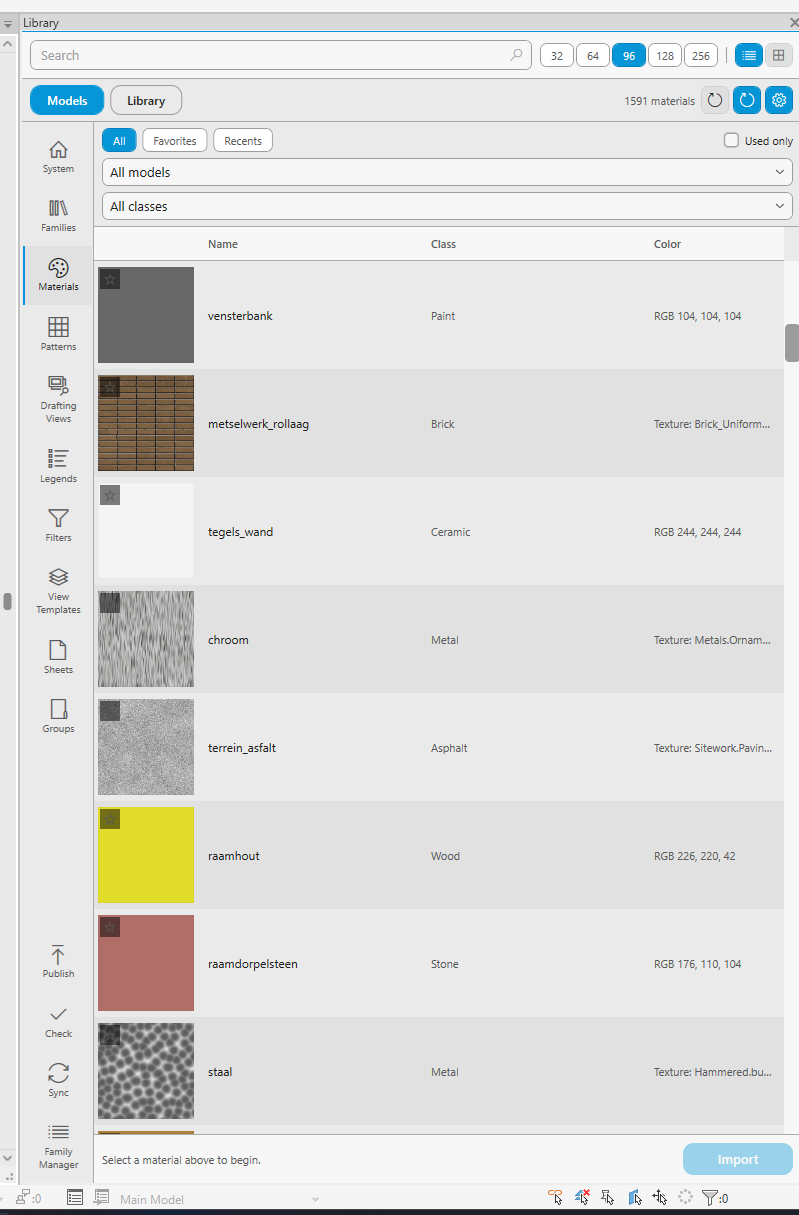
Materials tab: browse and import materials cross-document
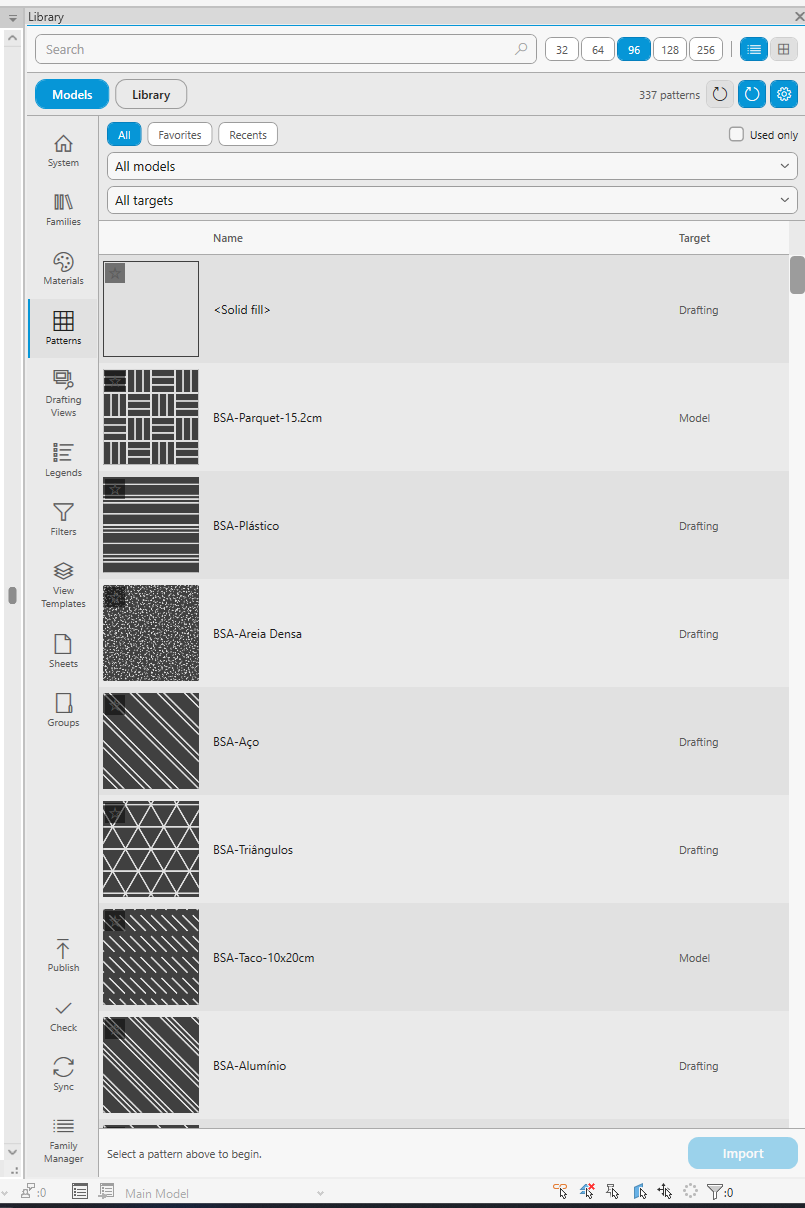
Patterns tab: fill patterns with target-aware uniqueness
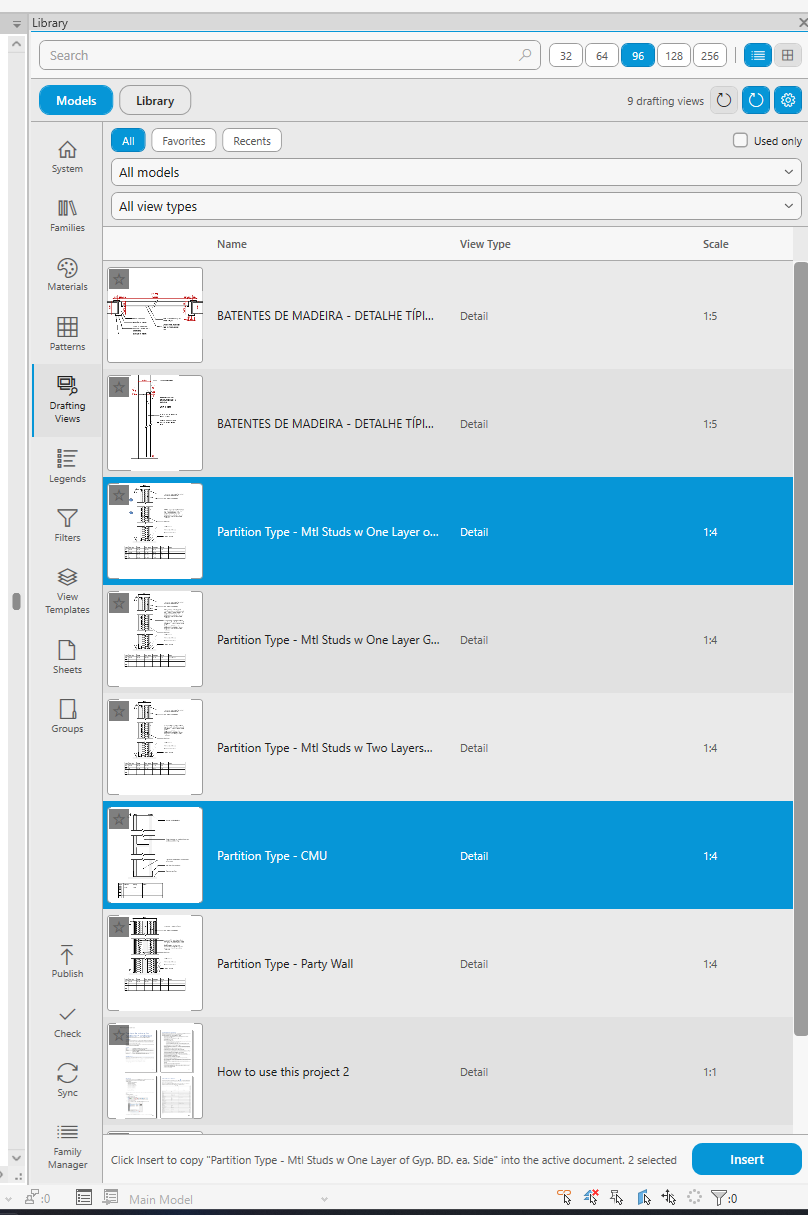
Drafting Views tab: copy drafting views with their content
Tips & Notes
- Dock the pane to any side of the Revit window, or float it on a secondary monitor — the layout adapts to narrow docks.
- Favorites and Recents live on the Library side; Recents keeps your last insertions (capped at 30) so repeat content is one click away.
- Toggle between list and tile modes and adjust thumbnail size; thumbnails are cached on disk, so the second launch is always fast.
- For view filters and view templates the default is skip-same-name — exactly what you want when enforcing an office standard across projects.
Limitations
- The first scan of a large library folder takes a moment while the cache is built — later launches load from the cache.